
How to apply for a Certificado Digital: deal with Spanish authorities online
You have your Residencia, your NIE number is in hand – and yet you spend hours trying to book appointments at the Agencia Tributaria, printing out forms and turning up in person. That is precisely what the certificado digital in Spain solves. It is a software signature installed in your browser that proves who you are – and allows you to submit tax returns, retrieve social security statements, register vehicles or sign official documents without ever leaving the house. Closely related, but differently conceived, is the Cl@ve system of the Spanish public administration. This guide explains what both are, how to apply for them step by step, which option suits your situation, and which mistakes typically cost people weeks.

Still unsure which digital access you need for your particular situation?
- 📩 Submit a personal enquiry — we will clarify which procedure makes sense for you
- Authorities & Registration – Overview
What is the certificado digital – and what is Cl@ve?
Both systems allow you to identify yourself to Spanish authorities online. However, they work in fundamentally different ways.
The certificado digital (also: certificado electrónico) is a software file installed in your browser. It contains your digital identity and allows you to sign documents electronically with legal effect. The most common route is via the FNMT (Fábrica Nacional de Moneda y Timbre), the state mint, which acts as the official certification authority. A certificate issued by the FNMT is free of charge and valid for 4 years – you do not need to reapply every year after that.
The Cl@ve system, by contrast, is not a single document but a family of authentication methods developed by the Spanish government for its online services. It consists of three variants:
| Variant | How it works | Recommended for |
|---|---|---|
| Cl@ve PIN | One-time PIN sent by SMS, valid for only a few minutes | Occasional use, simple enquiries |
| Cl@ve Permanente | Username + permanent password, optionally with 2FA | Regular users, business owners, self-employed individuals |
| Cl@ve Móvil | Smartphone app for mobile identification and signing | Increasingly the standard for administrative procedures |
Please note: Cl@ve does not replace the electronic signature of the certificado digital, but complements it. For many everyday dealings with public authorities, Cl@ve Permanente is sufficient – for more complex procedures such as tax returns as an autónomo or TIE renewals, you will need the FNMT certificate.
The certificado digital can subsequently be linked to your Cl@ve account, enabling access to the portals of the Agencia Tributaria (AEAT), the Seguridad Social, the DGT (traffic authority) and other authorities.
Who can apply for a certificado digital?
In principle, anyone who officially lives in Spain or carries out an economic activity there can apply for a digital certificate. This applies not only to Spanish nationals, but expressly also to EU citizens and non-EU citizens with valid residence status.
Requirement: You will need a valid Spanish identification number:
| Group of persons | Required number | Document |
|---|---|---|
| EU citizens (residents) | NIE | Certificado de Registro / green card |
| Non-EU citizens (residents) | NIE + TIE | TIE card |
| Spanish nationals | DNI | DNIe (electronic national identity card) |
| Non-residents with economic interests | NIE | White NIE certificate (generally no more than 3 months old) |
If you do not yet have an NIE, please read our guide on applying for an NIE number or on Residencia in Spain.
Step by step: applying for a certificado digital via the FNMT
The process runs in four clearly defined phases. Important: the browser and computer on which you submit the application must be the same ones on which you later download the certificate — changing devices between Step 1 and Step 4 will inevitably result in an error.
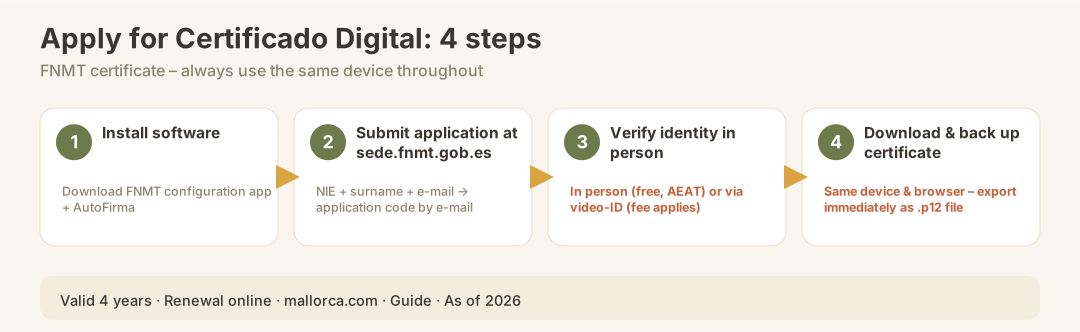
Step 1: Preparation (installing the software)
Before you start the application, you need to install two programmes:
- FNMT configuration application – prepares the FNMT to process the application in the browser
- AutoFirma – the official e-signature application of the Spanish administration, without which many procedures cannot be completed
Note for Mac users: Apple devices with a fingerprint scanner often have restrictive security settings that block FNMT websites and AutoFirma. Solution: In the Keychain Access app, set the certificates 'AutoFirma ROOT', 'localhost' and all FNMT certificates to 'Always trust'.
It is also advisable to Google Chrome in the latest available version; the operating system should also be fully up to date.
Step 2: Submit your application on the FNMT website
Go to the official FNMT website (www.sede.fnmt.gob.es) and navigate to "Certificado de Persona Física". There you will enter:
- Your NIE number (non-EU nationals: TIE number)
- Your first surname (Primer apellido) – exactly as it appears on your identity document
- An email address
You will then receive a application code by email. You will need this code at your in-person identification appointment.
Step 3: Personal identification
This is the crucial step – and the only one for which you still need to appear in person or complete a video session.
Option A – In person: You can verify your identity at one of the authorised offices. On Mallorca, these include offices of the Agencia Tributaria (AEAT) and certain registration offices. Please bring your application code and your original identity document (passport + NIE or TIE card).
Option B – FNMT video identification: The FNMT offers a fee-based video identification service, through which you verify your identity online via video chat. This option is convenient if you are not yet on Mallorca or have been unable to get an appointment.
| Identification method | Cost | Time required | Suitable if |
|---|---|---|---|
| In person (AEAT or similar) | Free of charge | 1 appointment + waiting time | You are already on Mallorca |
| FNMT video identification | Fee applies (FNMT rate) | A few days | You are not yet on the island |
| DNIe (Spanish eID) | Free of charge | Directly online | Spanish nationals |
Step 4: Download and install the certificate
After successful identification, you will receive an email with the download link. You download the certificate on the same computer and browser on which you submitted the application. The file is installed directly in the browser and is then available for all compatible government portals.
Create a backup copy immediately: Export the certificate as a .p12 file and store it securely. If you reinstall the browser or switch computers, the certificate will be irretrievably lost — and you would have to start the entire process from scratch.
Applying for Cl@ve Permanente: the simpler entry point
For many everyday transactions — such as retrieving tax documents, viewing your social security history, or submitting simple applications — Cl@ve Permanente is sufficient. The process is shorter than for the certificado digital.
- Register at
clave.gob.eswith your NIE/NIF and an email address - You will receive a letter from the AEAT containing an activation code (carta de invitación) at your registered address
- Activate the account online using the code from the letter
- Optional: Activate two-factor authentication via SMS
Please note: Without a valid Empadronamiento (registration of residence), the activation letter will not arrive. Make sure your registered address with the local authority is up to date. Find out more in our guide to Empadronamiento on Mallorca.
| Step | What happens | Duration |
|---|---|---|
| Online registration | Create account, enter NIE | 5 minutes |
| Await letter | AEAT sends activation code | 1–3 weeks |
| Activation | Enter code online | 5 minutes |
| Set up 2FA (optional) | Register SMS number | 5 minutes |
What do you actually need the certificado digital and Cl@ve for?
Here is a practical overview of the most common uses on Mallorca:
| Authority / Process | Cl@ve PIN | Cl@ve Permanente | Certificado Digital |
|---|---|---|---|
| IRPF tax return (Agencia Tributaria) | ✓ (straightforward) | ✓ | ✓ (complex) |
| Modelo 720 (overseas assets) | — | ✓ | ✓ |
| View social security account | ✓ | ✓ | ✓ |
| Register / deregister as autónomo | — | ✓ | ✓ |
| TIE renewal online | — | — | ✓ |
| DGT: vehicle re-registration / ITV data | ✓ | ✓ | ✓ |
| Sede Electrónica of the Consell de Mallorca | — | ✓ | ✓ |
| Sign official documents electronically | — | — | ✓ |
If you are self-employed (autónomo) in Spain or you submit your own tax return as a resident, you will sooner or later be unable to avoid the FNMT certificate.
Validity period and renewal
The FNMT certificate is valid for 4 years. You therefore do not need to reapply for it every year. Renewal can be done online — as long as the existing certificate is still valid. If it expires without you having renewed it, the entire process, including in-person identification, starts again from scratch.
| Certificate / System | Validity period | Renewal |
|---|---|---|
| FNMT certificate | 4 years | Online, as long as it is still valid |
| Cl@ve Permanente | Unlimited (as long as active) | Password changeable at any time |
| Cl@ve PIN | A few minutes | Generated anew with each use |
Tip: Make a note of the certificate's expiry date in your calendar and renew it 4–8 weeks before it expires.
Using the certificado digital on multiple devices
The FNMT certificate is initially only installed in the browser of the computer on which you downloaded it. For other devices there are two options:
- Export as a
.p12file and import it into another browser (Firefox, Chrome) on a different computer or laptop - Use on a smartphone via dedicated apps – the Cl@ve Móvil app increasingly supports procedures that previously required a desktop computer
Please note: When exporting and importing the certificate, a password is set. If you lose this password, the exported file becomes unusable. Store it somewhere safe.
The most common mistakes when applying for a certificado digital
These are the mistakes we encounter most frequently with the certificado digital – and they typically cost several weeks:
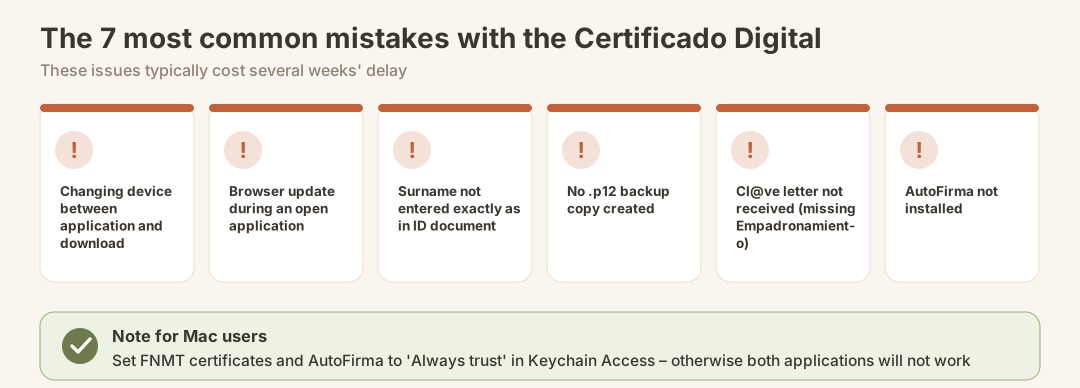
- Changing devices between application and download: Submitting the application on Laptop A and attempting the download on Laptop B → this will always fail. You must use the same device throughout.
- Browser update between application and download: Some updates delete saved configuration data. Do not update AutoFirma or the FNMT application before a browser update if the download is still pending.
- Surname does not match exactly: Typos in the first surname during the online application will result in rejection. Copy it directly from the original document and do not use autocorrect.
- No backup copy created: Anyone who only has the certificate in their browser and resets or changes their computer will lose it with no way of recovering it.
- Activation letter for Cl@ve does not arrive: The cause is almost always a missing or incorrectly registered Empadronamiento.
- AutoFirma not installed: Many processes on the AEAT tax portal cannot be completed without AutoFirma – even if the certificate is correctly installed.
- Mac security settings ignored: Installing FNMT certificates and AutoFirma on macOS without manually setting trust → both applications will not work.
What comes next? Authorities and processes you can now handle online
With a working certificado digital and Cl@ve Permanente, the entire Spanish public administration opens up to you digitally. In practical terms, this means the following on Mallorca:
- AEAT (Agencia Tributaria): Tax returns, Modelo 720, viewing tax assessments, applying for payment plans → relevant for Taxes & Finance
- Seguridad Social / TGSS: Cuota autónomo management, social security statements, maternity benefits → relevant for the Cuota Autónomo
- DGT: Vehicle re-registration, checking fine status, verifying driving licence points → relevant for Cars & Road Traffic
- INSS: Pension information, requesting international forms (e.g. S1) → relevant for the S1 form
- Sede Electrónica Consell de Mallorca: Planning permissions, municipal applications, environmental authority
Checklist: applying for certificado digital & Cl@ve
Before applying
- NIE number or TIE available and valid
- Empadronamiento up to date (for Cl@ve letter)
- Computer and browser chosen (do not switch!)
- Google Chrome up to date and installed
- FNMT configuration application installed
- AutoFirma installed
- (Mac) FNMT certificates set to "Always Trust" in Keychain Access
During the process
- Application code received by email and saved
- Identification appointment or video appointment booked
- Original documents brought along (passport + NIE/TIE)
After the download
- Certificate successfully installed in the browser
- Backup copy immediately created as a
.p12file and password noted down - Expiry date entered in the calendar (4 years)
- Cl@ve Permanente activated with AEAT letter
- Test: logging in to
sede.agenciatributaria.gob.esworks
Conclusion
The certificado digital is not an optional extra — for anyone who lives, works, or conducts financial affairs on Mallorca on a permanent basis, it is sooner or later unavoidable. The technical effort involved is manageable; most problems do not arise from the process itself, but from avoidable mistakes: the wrong browser, switching devices between application and download, missing AutoFirma, or invalid NIE details. Anyone who bears these points in mind from the outset will generally have their certificate up and running within a few days. Cl@ve Permanente complements it as a low-threshold option for everyday use — together, the two cover virtually all dealings with public authorities in Spain digitally.
Official Sources
- FNMT (Fábrica Nacional de Moneda y Timbre) – Certificado de Persona Física: www.sede.fnmt.gob.es/certificados/persona-fisica
- Cl@ve – Official Portal of the Spanish Government: clave.gob.es
- AutoFirma – Download and Documentation: firmaelectronica.gob.es/Home/Descargas.html
- Agencia Tributaria – Electronic Office: sede.agenciatributaria.gob.es
- Seguridad Social – Electronic Office: sede.seg-social.gob.es
- DGT – Electronic Office: sede.dgt.gob.es